

Connecting an additional accounting entity
This scenario applies if you already have Agent Nisa installed on the server or computer running your Pohoda instance — with a working connection to that Pohoda instance configured — and you simply need to connect an additional company in Capitain to the corresponding accounting entity in Pohoda.
Steps
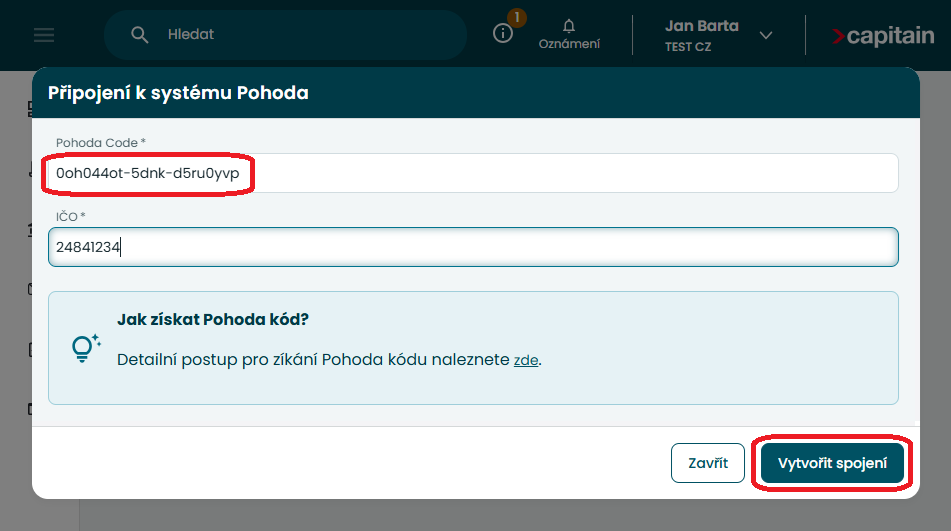
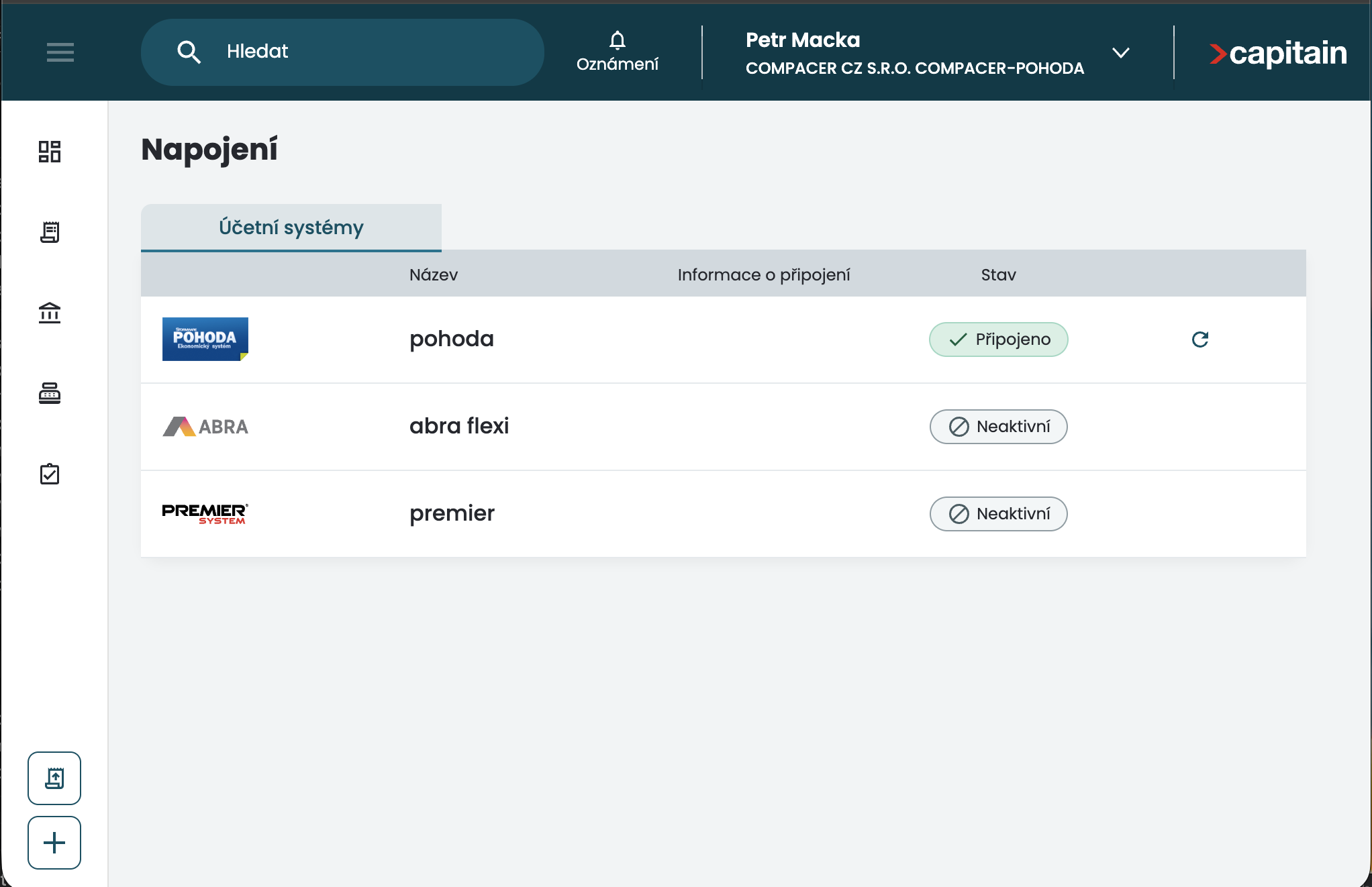
- In Capitain, open the menu in the top-right corner next to your name and company name, and select "Connections" – "Accounting systems" – "Start connection".


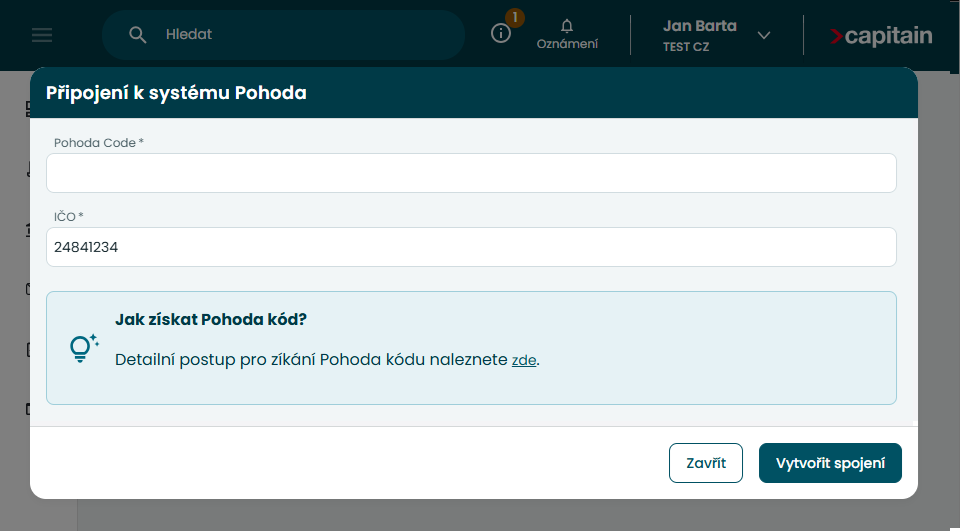
- Log in to the server or computer where your Pohoda instance is running, and open the address https://agent.nisa.digital/agent in a web browser to display the Agent Nisa user interface.
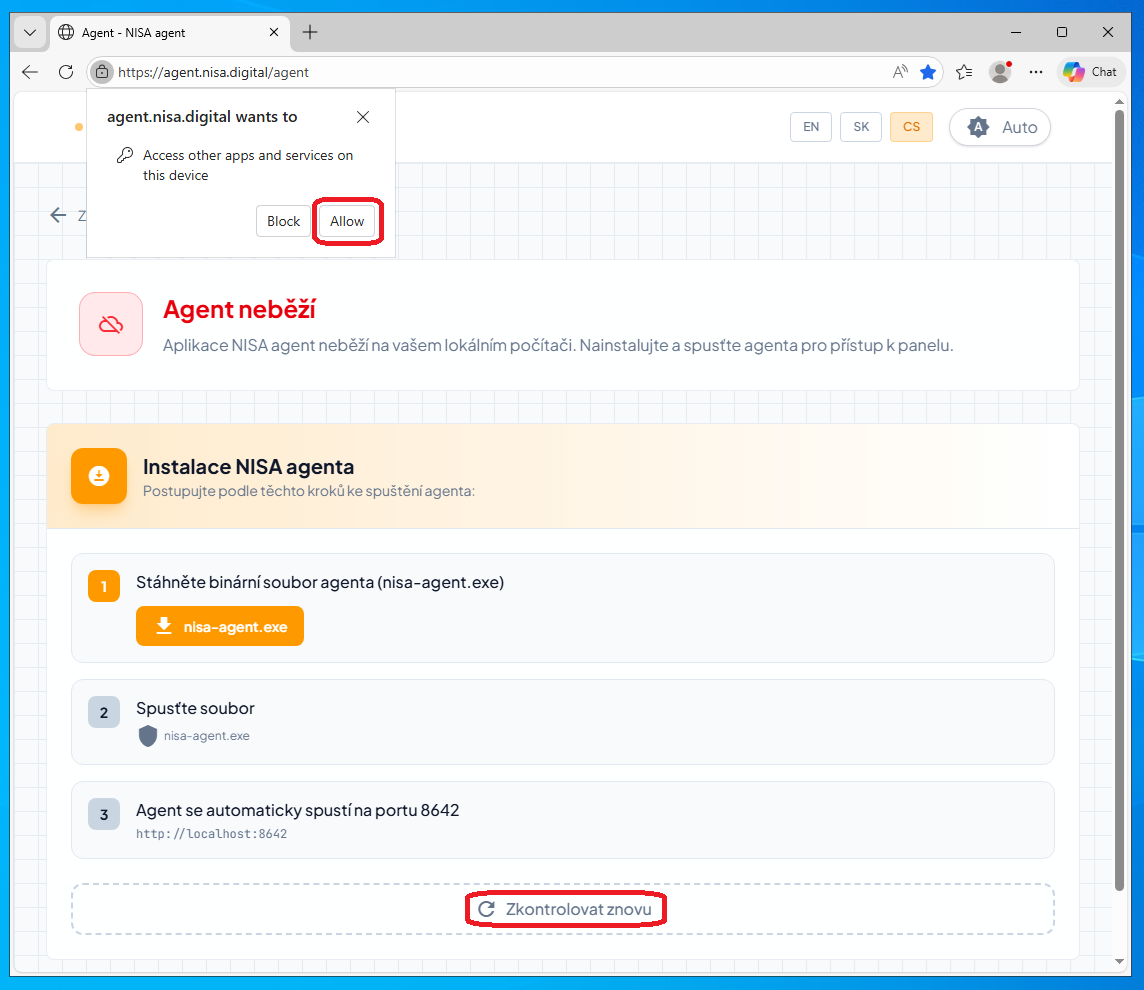
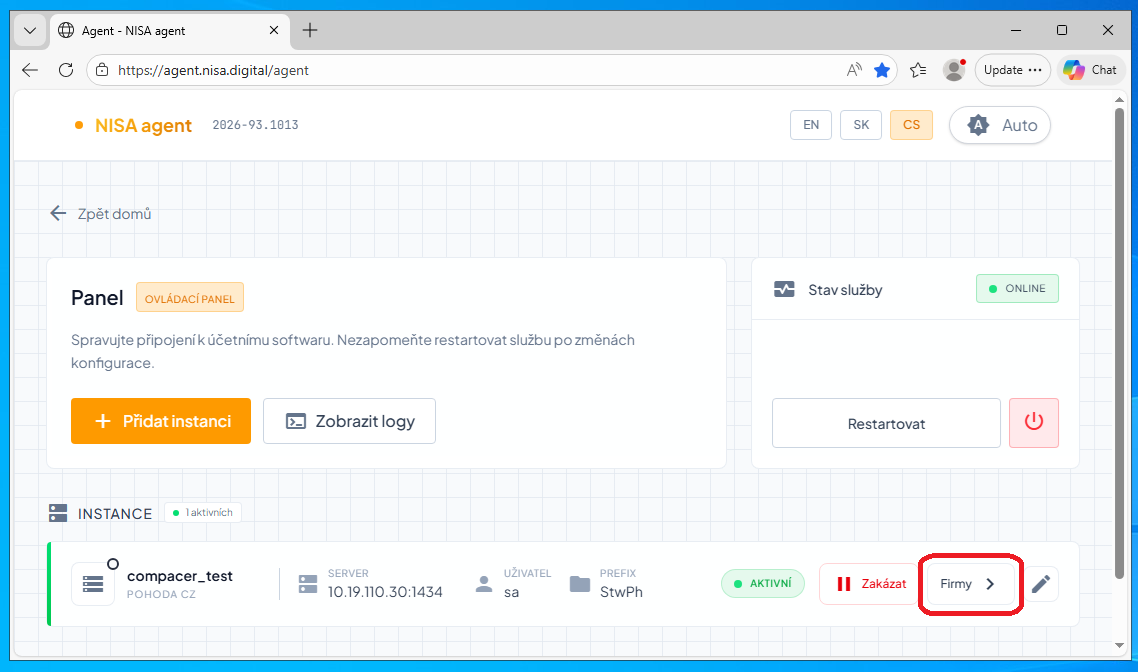
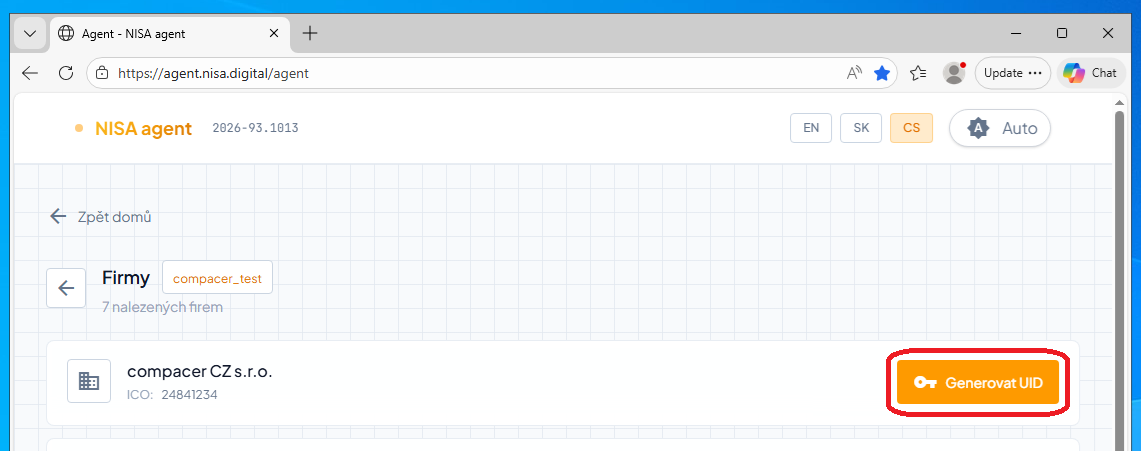
- Use the "Companies" button next to your service instance to display the list of accounting entities from Pohoda, then click the "UID" button next to the entity you want to connect to Capitain to generate its API key.
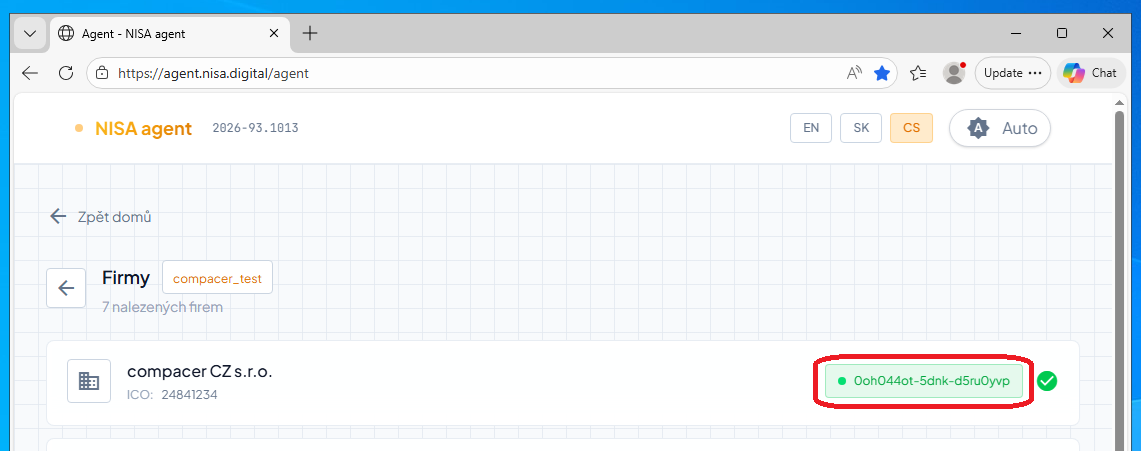
- Copy the generated API key and paste it into the "Pohoda Code" field in the integration form in Capitain. Complete the process by clicking "Create connection".